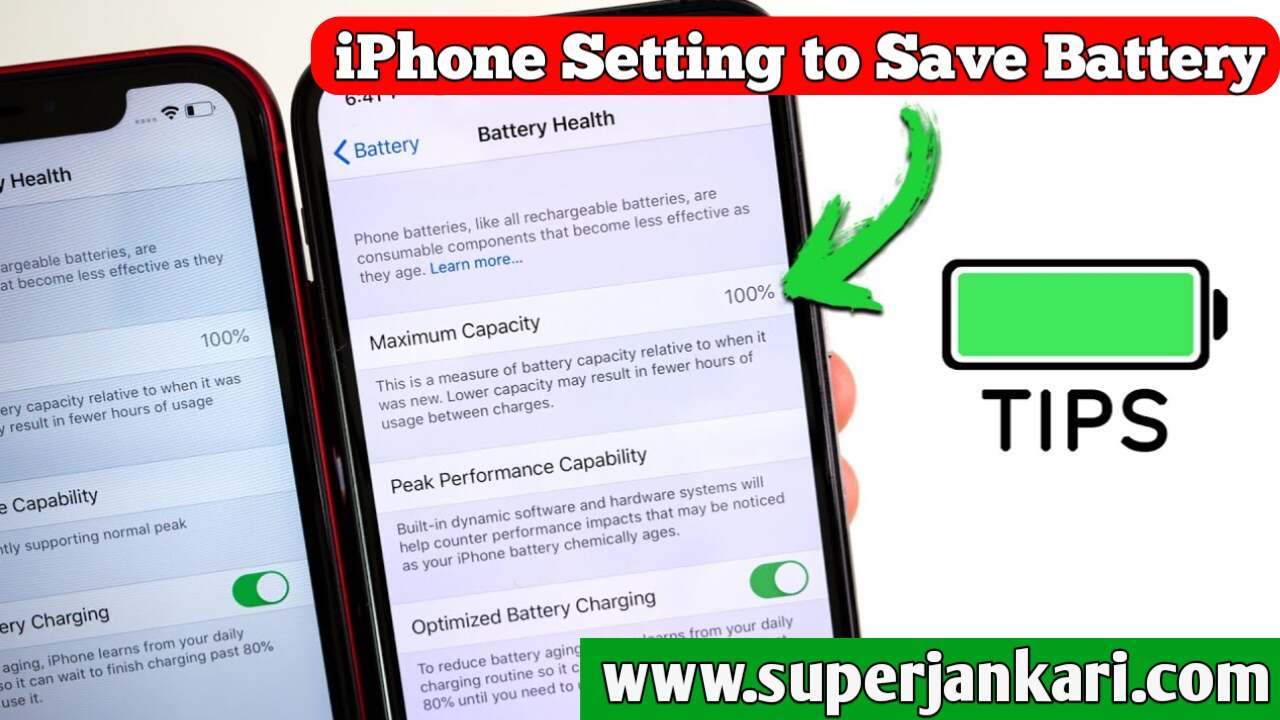
7 Great iPhone Settings to Save Battery
If you own an iPhone and feel the battery drains too quickly, adjusting certain settings can help reduce battery consumption. Additionally, some settings can make the iPhone experience feel smoother and more focused.
Many iPhone users complain about having to keep Low Power Mode on all day. While battery life depends on various factors—such as the iPhone model, battery health, screen brightness, network conditions, and app usage—adjusting specific settings correctly can help minimize unnecessary battery drain.
Let’s explore some of these useful iPhone settings.
1. Turn off Background App Refresh
First, open the Settings app on your iPhone.
Then, navigate to:
Settings → General → Background App Refresh
Here, you will see the Background App Refresh option. You can turn it off.
Background App Refresh allows certain apps to check for and refresh content while running in the background. Disabling this reduces background app activity, which can save battery and mobile data in certain situations.
If you don’t want to turn it off completely, you can choose to keep it enabled only for essential apps.
2. Use True Tone as needed
The True Tone feature on the iPhone adjusts the screen’s color and appearance based on the ambient lighting.
To turn it off, you can usually go to:
Settings → Display & Brightness → True Tone
However, turning off True Tone may not make a significant difference to battery life. So, if you find the screen more comfortable to view with True Tone enabled, there is no need to turn it off.
If your primary goal is to save battery, lowering screen brightness and using Auto-Brightness might be more effective.
3. Turn off the “Hey Siri” listening setting
If you rarely use Siri, you can disable its voice activation setting. To do this, go to:
Settings → Siri
Or, in some iOS versions:
Settings → Apple Intelligence & Siri
From there, you can disable options related to Siri’s listening or voice activation based on your needs.
If you do not use “Hey Siri,” turning it off can reduce unnecessary voice-listening activity.
However, the impact on battery life may vary depending on your usage and iPhone model.
4. Turn off App Tracking
Now, let’s discuss a useful privacy-related setting.
On your iPhone, go to:
Settings → Privacy & Security → Tracking
Here, you will see the option “Allow Apps to Request to Track.”
If you want to prevent apps from asking for permission to track you, you can turn this off.
Additionally, you may see a list below of apps that have been granted tracking permission. You can manage these permissions according to your privacy preferences.
Keep in mind that app tracking is primarily a feature related to privacy and advertising. The goal of turning it off is to have better control over your privacy; the amount of battery saved can vary from device to device.
5. Manage Location Services Properly
Many apps on your iPhone use Location Services. Therefore, it is important to check the location permissions for apps that do not actually need your location.
To do this, go to:
Settings → Privacy & Security → Location Services
You will see a list of apps that have access to your location.
Carefully review the permissions for each app. For apps that do not require location access, you can select “Never” or another appropriate option.
For some apps, the “While Using the App” option is also useful. This ensures the app only accesses your location while you are actively using it.
This way, you can enhance your privacy while also reducing unnecessary background location activity.
6. Use “Reduce White Point”
If you feel your iPhone screen is too bright, the “Reduce White Point” feature can be very useful.
To find it, go to:
Settings → Accessibility → Display & Text Size → Reduce White Point Once enabled, you can adjust the percentage according to your preference.
The higher the percentage you set, the less intense bright colors and white areas on the screen will appear.
This feature can be used—especially at night or in low-light environments—to make the display more comfortable for your eyes.
How to quickly turn “Reduce White Point” on or off?
You can also add it to the Accessibility Shortcut.
To do this:
Go to Settings → Accessibility → Accessibility Shortcut
and select “Reduce White Point.”
After that, you can quickly toggle this feature on or off by pressing the Side Button or Home Button three times, provided your iPhone’s Accessibility Shortcut is configured this way.
7. Turn on “Reduce Motion”
Now, let’s discuss a setting that can provide a more focused and simple experience for some users while using their iPhone.
To do this, go to:
Settings → Accessibility → Motion → Reduce Motion
and turn it on.
And turn it on.
Enabling “Reduce Motion” minimizes certain screen animations and motion effects in iOS.
This can make the interface feel faster and more responsive to some users. However, its primary purpose is accessibility, and the impact on battery savings may be limited.
If you aren’t a fan of excessive animations, this setting could be useful for you.
Bonus Tip: Make proper use of Low Power Mode
If you want to extend your battery life, using Low Power Mode when needed is one of the easiest solutions.
You can enable it via:
Settings → Battery → Low Power Mode
Low Power Mode helps reduce battery consumption by limiting certain background activities and performance-related features on the iPhone.
However, it isn’t necessary to keep it on all day; you can use it based on your battery percentage and usage needs.
Conclusion
An iPhone’s battery life doesn’t depend on just a single setting. Battery backup is influenced by various factors, such as battery health, screen brightness, mobile networks, 5G usage, background activity, location services, and app usage.
Therefore, adjust the settings mentioned above according to your needs. In particular, before changing settings like Background App Refresh, Location Services, Tracking, or Accessibility options, ensure that the functionality of essential features or apps isn’t being compromised.
If your iPhone is draining battery quickly, in addition to adjusting settings, check “Settings → Battery” to see which app is consuming the most power. This will help you identify the root cause of the issue more effectively.

I am the founder and content creator of SuperJankari.com, a technology-focused website dedicated to sharing useful information about smartphones, laptops, gadgets, apps, software, and the latest technology updates. My goal is to make technology easy to understand by providing clear, practical, and informative content for readers.